
Audio sharing in Mega Community app for Shopify
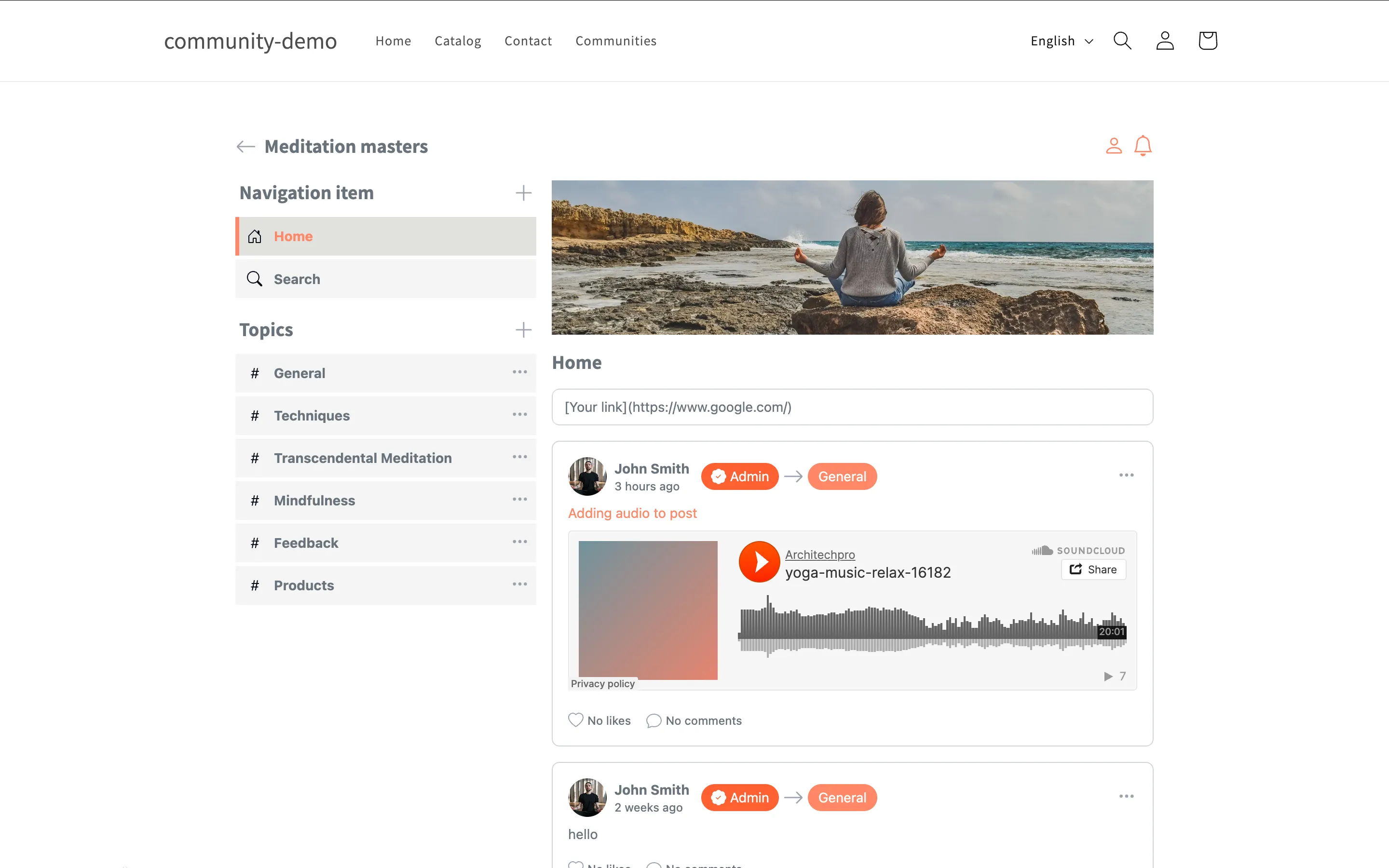
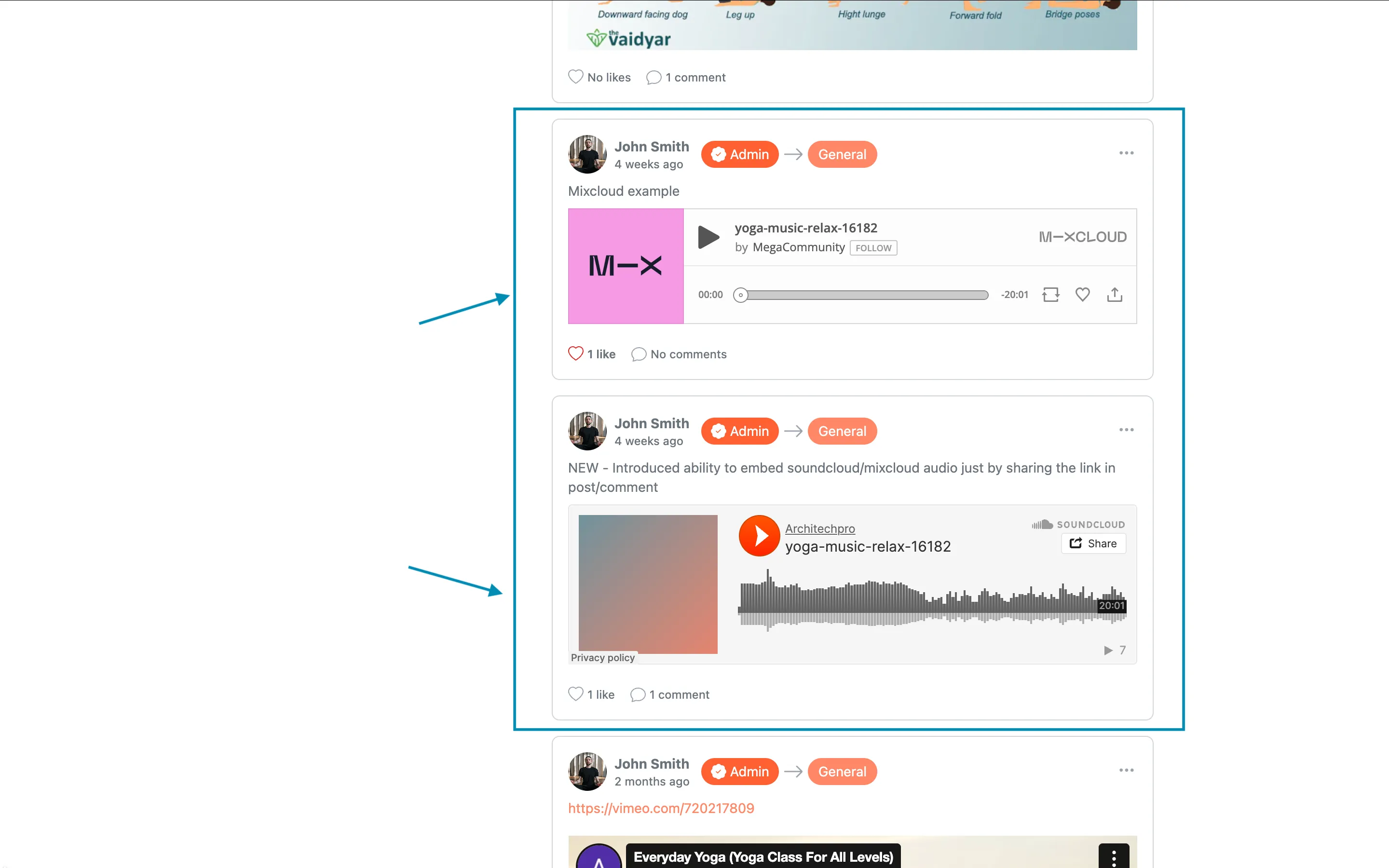
Want to share your latest mix, podcast, or audio track? In Mega Community app, you can easily embed audio from Mixcloud and SoundCloud right into your posts and comments. It’s a simple and effective way to add sound to your conversations.
How it works
We recommend uploading your audio files to SoundCloud or Mixcloud. Once your track is live, just paste the link into a post or comment in Mega Community app for Shopify — the app will automatically turn it into an embedded audio player.
How to upload your audio
We recommend using these official guides to upload your audio tracks:
Once your track is uploaded, copy the URL and paste it into a Mega Community post or comment—the app takes care of the rest.
How to add your audio to the community
1. Copy the audio link — it can be from SoundCloud or Mixcloud.
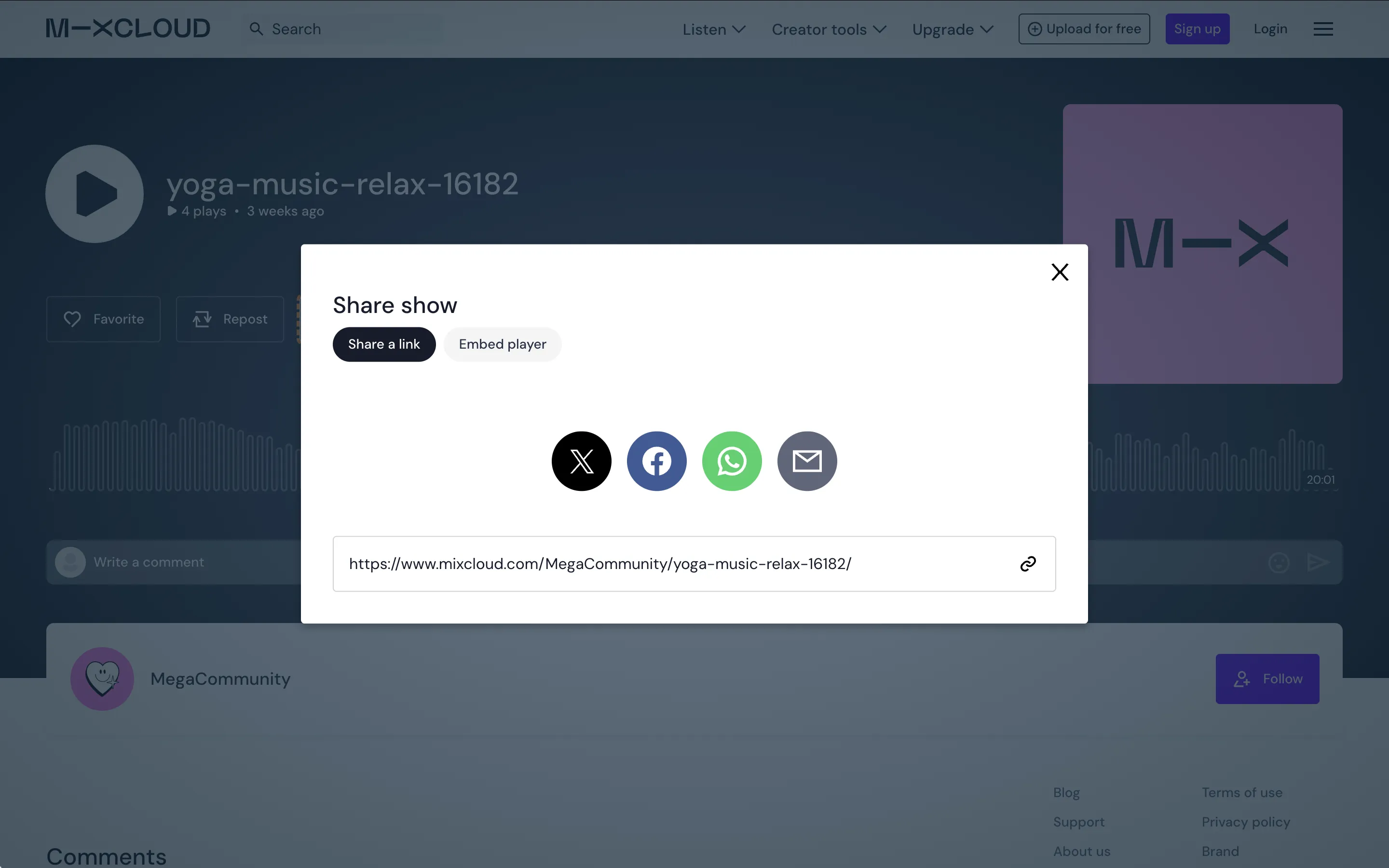
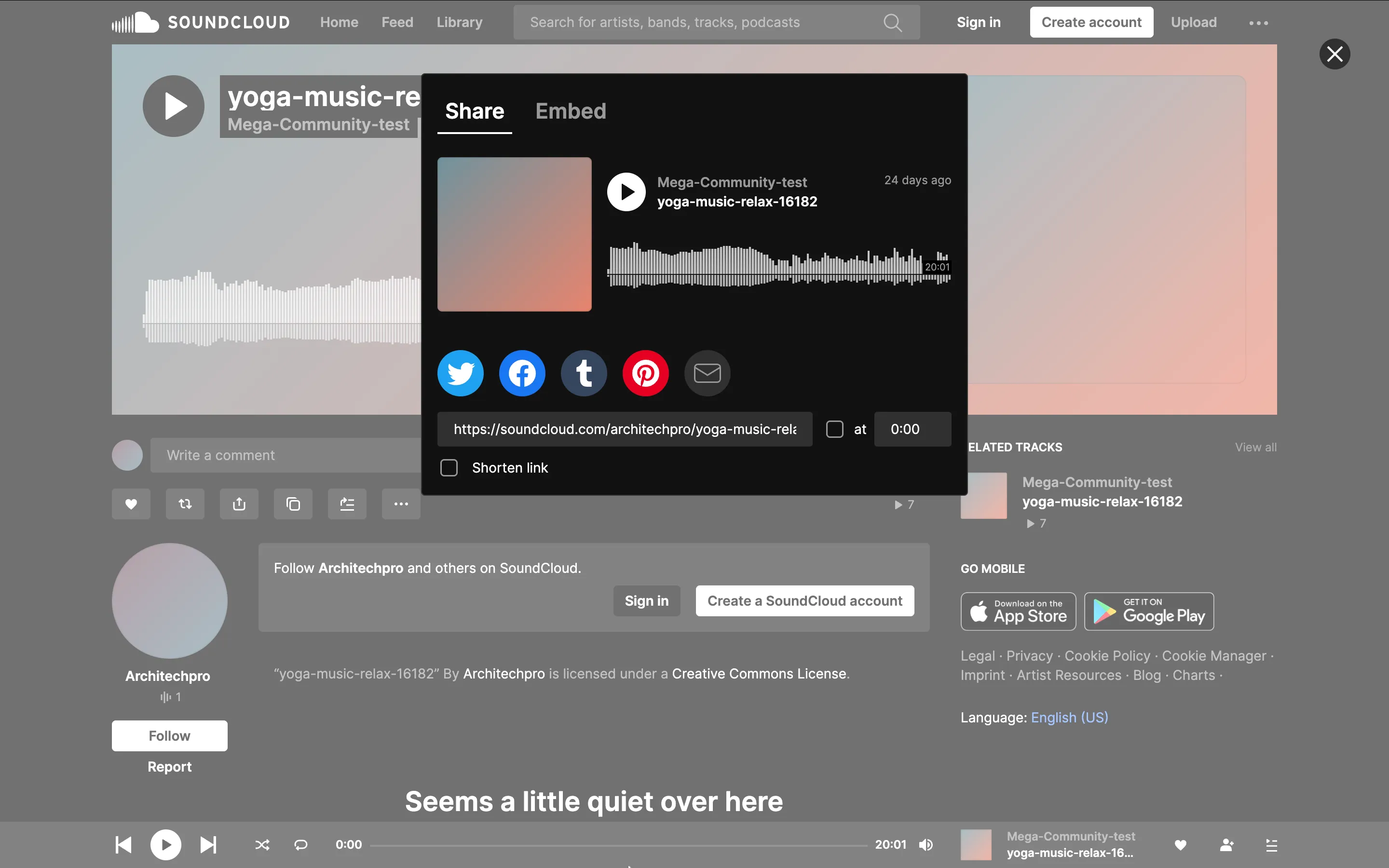
2. Create a post or comment and use the link icon to attach your audio.
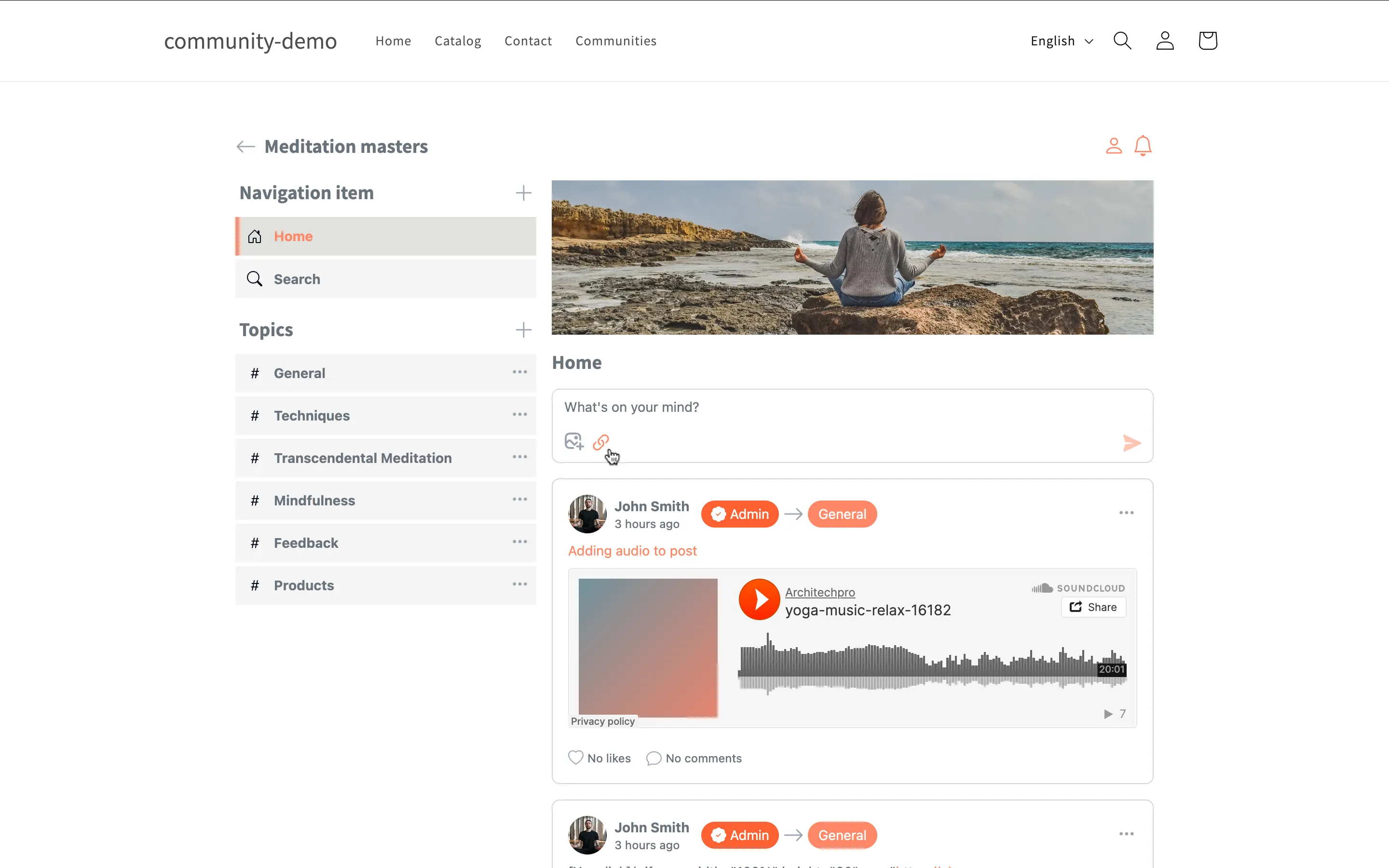
3. Add a title for your post and paste the copied link into the URL field
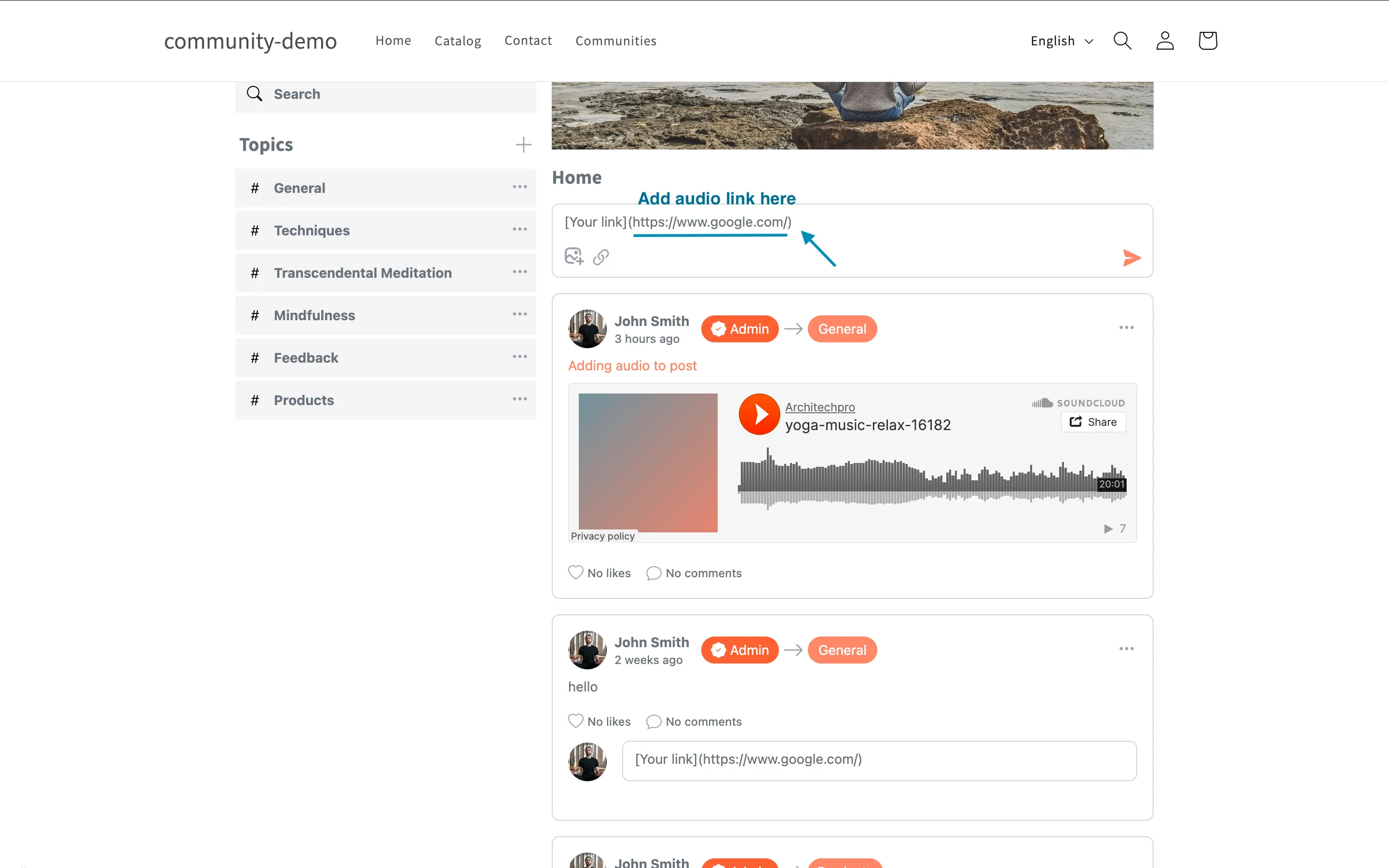
Your post will look like this:
Install Mega Community app for Shopify to easily share audio, join conversations, and stay connected with your creative circle.